🚀 Programming Example
Print Messages using info, warning and error
Learn this program step-by-step with algorithm, source code, output and detailed explanation.
/// <summary>
/// Print Messages using info, warning and error.
/// </summary>
internal final class PrintMessages
{
    public static void main(Args _args)
    {
        info("This is an information message.");
        warning("This is a warning message.");
        error("This is an error message.");
    }

}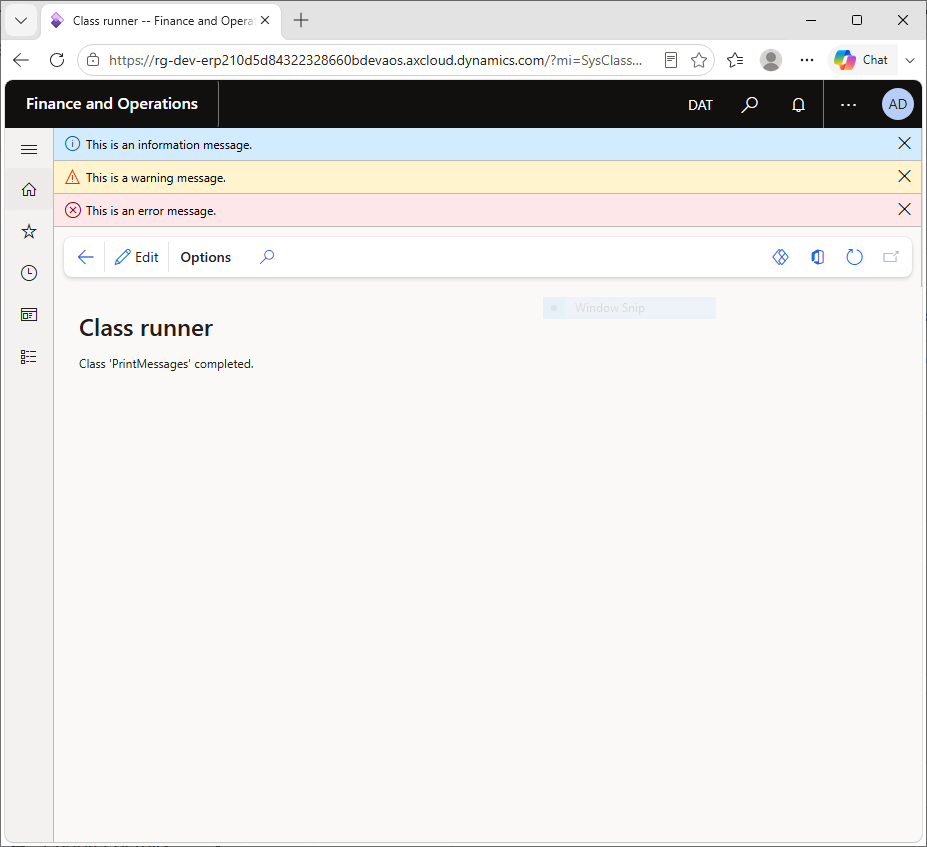
Dynamics 365 Finance and Operations talks to users through the Infolog, the message bar at the top of every page. X++ gives you three global functions for writing to it, one per severity level: info(), warning() and error(). This program calls each one once so you can see how the three messages look side by side.
Choosing the right level matters in real projects. Users ignore screens full of red errors that are only informational, and they miss real problems shown in blue. Knowing what each function does, and what it does not do (none of them stops your code), is one of the first things every X++ developer must learn.
1. The class declaration
internal final class PrintMessagesinternal keeps the class inside its own model and final stops other classes from extending it. Both are good defaults for runnable demo classes.
2. The information message
info("This is an information message.");info() writes a blue message with an "i" icon. Use it to confirm success, for example "Invoice posted" or "15 records updated".
3. The warning message
warning("This is a warning message.");warning() writes a yellow message with a triangle icon. Use it when something is unusual but processing can continue, for example "Customer is close to the credit limit".
4. The error message
error("This is an error message.");error() writes a red message with a cross icon. The important point is that calling error() on its own does not stop the program. The next statement still runs. To stop execution and roll back the current transaction you must throw it:
throw error("Amount cannot be negative."); stops the code and raises an Exception::Error.error() returns the value Exception::Error, which is exactly what throw needs. That is why throw error("...") works as one statement.throw: turns a message into an exception. Use throw error() for real errors and catch it with try/catch (Exception::Error).checkFailed(): writes a warning and returns false. It is the standard way to report a failed check inside validateWrite() or validateField().setPrefix(): groups related messages under a heading in the Infolog tree, which is very useful in batch jobs.This is an information message.
This is a warning message.
This is an error message.The Infolog shows three lines with different icons and colours: blue for info, yellow for warning and red for error. Because an error message is present, D365 F&O opens the message bar in its error style.
throw error("..."), not just error("..."), when the process must stop."@MyModel:CreditLimitExceeded") for messages users will see, so they can be translated.strFmt("Customer %1 is blocked", custAccount).error() for messages that are just informational. Red messages make users think something failed.throw error("...") to stop execution and roll back the transaction.checkFailed() also returns false, so it fits validation methods that return a boolean.setPrefix("Heading"). Messages written afterwards appear under that heading in the Infolog tree.infolog.clear(). Use it carefully, because it removes messages users may need.Exception::Error, which you catch with catch (Exception::Error).First understand the algorithm carefully. Then study the program line-by-line and compare it with the output. Finally, review the explanation section to strengthen your logic and programming understanding.
Rewrite the program without looking at the code. Modify values, conditions or logic and run it again. This helps improve confidence and strengthens coding skills much faster.
Sign in to save your progress and continue exactly where you left off.