Table of Contents
Comprehensive Guide to Restoring Databases in SQL Server
In this tutorial I will show you how to restore database. In SQL Server, you can restore a database very easily. To restore a database right click on the Databases node, then select Restore Database...

- Select Device
- Click on three dot

Click on Add button. Then add your backup file.

- Go to the backup file location
- Select backup file
- Click OK

- You can see the file
- Click on OK

- You can change the destionation Database name

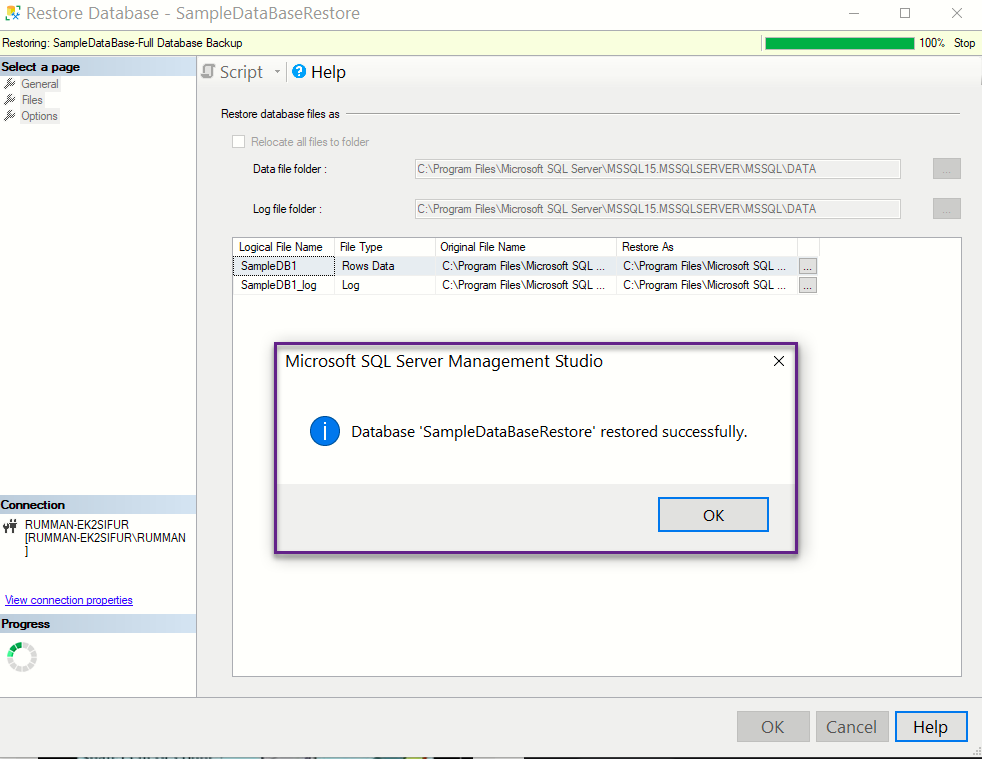
You can change the logical file name

After clicking on Ok button you will get a success message.
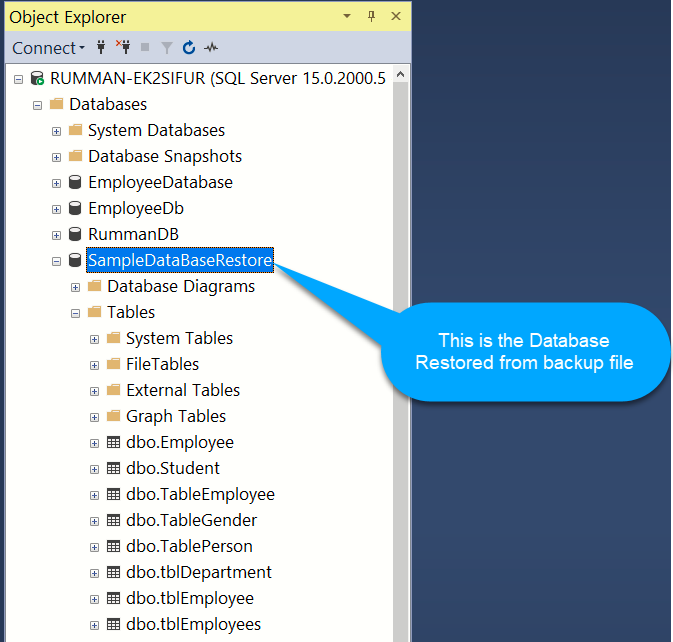
Now you can check your database node you will be able to see you database which you restored.